

A screenshot is an image of the screen on which you are testing. It is used to show information, for example, if you find a display error (a type of bug) on a website which you're testing, you would include a screenshot showing this part of the site.
E.g. Here is a screenshot from a Windows 10 Computer.
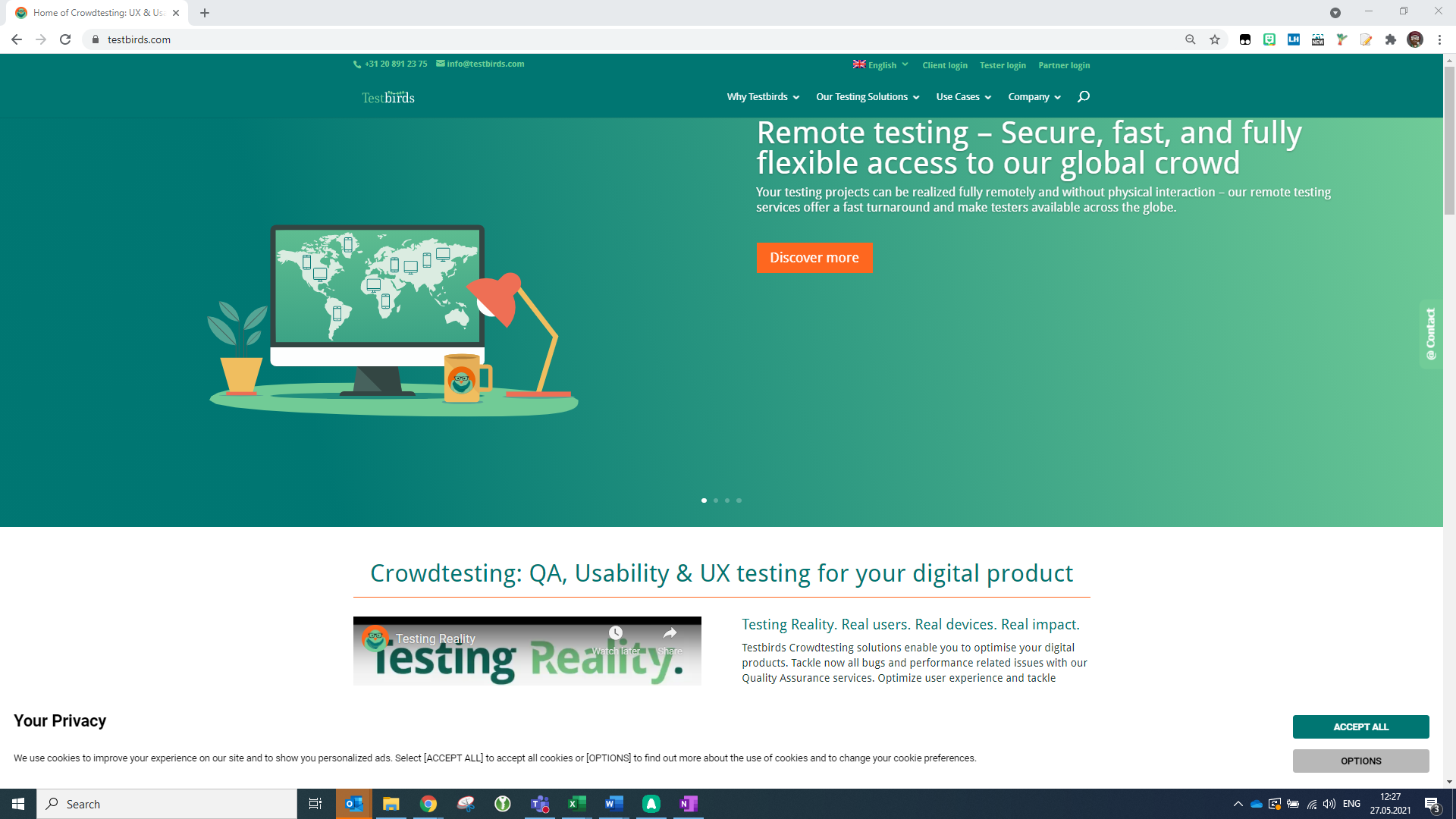
A screenshot is not a photograph taken from a different device.
It does not matter to us how you make the screenshot, as long as the relevant part of the screen is visible.
This means that usually the entire browser window (including the URL) and taskbar or the entire app should be visible. We recommend that you highlight the interesting area (like a Bug) on the screenshot, e.g. with MS Paint or a different image editing program. Unfortunately, Android, unlike iOS, does not have a common key combination for making screenshots.
How to make screenshots on the following devices:
Desktop
Windows
- Use the “Snipping Tool”
- or press the button "Print [Screen]”-Button and paste it into an image program like Paint.
- or Key combination: "Windows" + Shift + S and select the whole screen.
Mac OS
Key combination: ⌘ (Cmd) + Shift + 4
Linux
Key combination: Alt + "Print [Screen]”-Button OR Ctrl + Alt + "Print [Screen]”-Button
Smartphones
iOS
Press the “Home” and “Power” buttons at the same time
Android 4.0 and above, Option 1*
Press the “Volume Down” and “Power” buttons at the same time
Android 4.0 and above, Option 2*
Press the “Home” and “Power” buttons at the same time
Android 2.3 and below
Press the “Home” and “Power” buttons at the same time
Windows Phone 8
Press and hold the "Windows" button, then press the "Power" button
Windows Phone 8.1
Press and hold the "Volume up" and "Power" buttons
Windows 10 Mobile
Press and hold the "Volume up" and "Power" buttons
*Depending on your phone type, there are two different ways to make screenshots with Android 4.0 and above.
These shortcuts may vary by smartphone model. If these don’t work for you, look up your model online to see if there are other shortcuts. Easy Screenshot is a free app that takes screenshots on your smartphone.
Important: Always try to create a connection in the text to the screenshot you are referring to! And please only upload screenshots in the formats png, gif, jpg or jpeg