

Screencasts record all screen activities in a video. Screencasts can be useful to document certain kinds of Bugs. Especially when it comes to malfunctions (like buttons that don't work) doing a screencast is very important. In some tests, screencasts are even mandatory (we’ll mention this in the test description). Remember that our Nest supports the following video formats: 3gpp, mp4, mov, webm, qt. The format .swf is not allowed. The maximum video file upload size is 500 MB.
Some free screencast programs for PCs:
For Windows and Mac
Screencast-o-matic: recordings are limited to 15 minutes with the free version. Detailed instructions can be found here.
Screencastify (Chrome Plugin): limited to 50 videos per month, each with a maximum length of 10 minutes.
Jing: Jing only saves screencasts to .swf format, which isn’t supported by our platform. However, you can use a Free SWF to AVI Converter to convert it to a format we support. You'd also have to sign up for Jing. We recommend only using it, if no other tool works for you.
For Mac only
The latest versions of MacOS have an in-built screen recording tool! By default press Shift-Command-5 to open. You can record multiple screens, one screen, or only a selection or choose a mic to use.
Alternatively try QuickTime Player.
You can find help on both of these here.
Linux
Depending on your distribution Kazam might work. But there are many other good applications out there.
Screencast programs for smartphones:
Some devices have integrated functionalities to record a video of your screen and there are many programs available.
If you are using iOS or Android then we recommend using the Testbirds Companion app for an ad-free, data-safe tool.
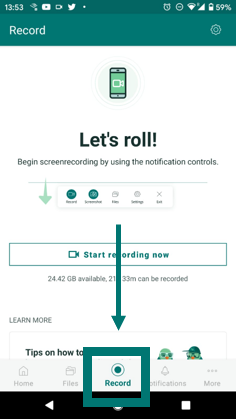
Once you have installed the app, open it, and tap “record” from the menu at the bottom:
Follow the in-app steps to configure your permissions and settings.
To record, tap the “record” button from the menu at the bottom of your screen
Then tap “Start recording now” in the middle of the page to begin.
You will receive a countdown before recording starts.
You can pause or stop the recording at any time. Remember to name and save your video once you’re done. You can also take screenshots using the app.
If you don't want to use the Tesbirds app or you need to record your tablet screen:
Try searching online for "screencast" + your device model.
Otherwise, you can use one of the programs here. None of them require you to root/jailbreak your phone. Some of these may require a PC to which you'll mirror your mobile display and then use one of the PC screen recorders mentioned above.
Android
AZ Screen Recorder (Android version 5.0 and above). Detailed instructions can be found here.
Vysor (4.1 and above; mirrors device to your computer and records sound using PC microphone)
Mobizen (for versions 4.2 and above)
liteCam Android (for Android 4.1 and above; USB debugging mode must be enabled)
iOS
Starting with iOS 11, your device has an intergrated recording function. You just need to add the feature's button to the Quick Menu/Control Center. To do so, go to Settings > Control Center > Customize Controls. Next, tap the green + button next to Screen Recording. Now, a recording button as part of your general quick control center options. Detailed instructions can be found here.
for other iOS versions:
use QuickTime Player on your computer and connect with the mobile device (see. "Record a movie")
AirServer (free trial version)
Windows Phone
or try these instructions
Only if your device doesn't support screencast software at all, should you use an external camera to record a video of the screen.